
One of the most popular questions among creators, students, gamers, and lovers of karaoke is how to use mini microphone. A mini microphone is a small and convenient device that can be used to enhance your audio quality immediately without having to spend money on costly studio equipment. A mini mic can provide high-quality, professional sound whether you are interested in recording podcasts, in holding online meetings, or even in singing karaoke.
In this step by step tutorial, you will get to know how to use a mini microphone on iPhone, Android and laptop. You also learn the steps to install a mini karaoke microphone and how to fix some of the common problems that may arise during connection.
Table of Contents
Understanding Mini Microphones
What Is a Mini Microphone?
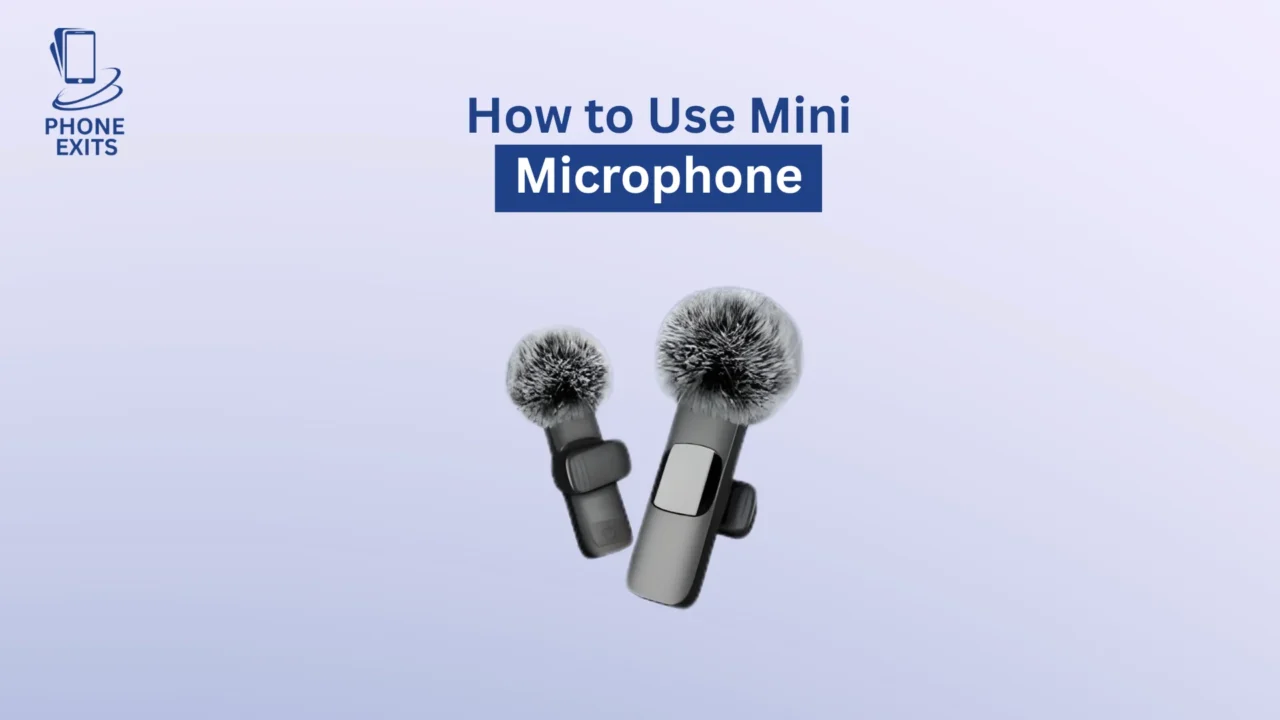
A mini microphone is a personal, small, audio device that records sound better than the standard, inbuilt phone or laptop mic. Although mini mics are small, they can have high quality voiceovers, online calls or informal music recordings. They are available in wired, USB, and wireless.
Why Use a Mini Microphone?
The mini microphones are those that are suitable to anyone who desires convenience and clarity. They cut noise in the background, increase the details in the voice and are portable. Mini mics are the easy-to-use upgrade that offers professional sound to vloggers, streamers, or students recording lectures.
Types of Mini Microphones
Wired Mini Microphones
The most common ones are wired mini mics. They are typically connected with a 3.5mm jack, either TRRS (phones and laptops) or TRS (cameras). In case your phone has no headphone jack, you will require a type of an adapter like Lightning-to-3.5mm in the case of iPhones or USB-C in the case of Androids.
USB or USB-C Mini Microphones
USB mini microphones are linked directly to laptops and PCs. They are also usually of better sound quality and they work automatically when they are plugged in. USB-C mini microphones are also supported by some modern Android phones to use as a plug-and-play device.
Wireless and Bluetooth Mini Microphones
Wireless/ Bluetooth mini microphones are excellent in mobility. Paired with Bluetooth or a compact receiver, these mics are used in vlogging or karaoke. They are chargeable but provide an experience that is not wired.
How to Use a Mini Microphone on iPhone
Step 1: Choose the Right Adapter
The vast majority of iPhones beyond the iPhone 7 lack a headphone port. In the event that your mini microphone comes with a 3.5mm connector, insert it into a Lightning-to-3.5mm adapter. You will also need a TRS-TRRS converter to fit your microphone (TRS) so as to be compatible with the iPhone input system. TRS is common in cameras and so you will need a TRS-TRRS converter.
Step 2: Connect the Microphone
Plug the mini microphone or its adapter into the port of your iPhone. In the case of wireless mics, please turn on Bluetooth, and then access the microphone under the Bluetooth menu.
Step 3: Enable Microphone Permissions
Go to Settings → Privacy → Microphone and make sure that the app you are going to use like Voice Memos or Camera has access to the microphone. Your recordings will be in silence without this permission.
Step 4: Test the Microphone
Open Voice Memos app or Camera and record a short videotape. Record into the mic and then listen. When the sound is weak or missing, check the connection or adapter. Reconnecting often helps.
Step 5: Optimize Your Sound
Grasp the mic between 6-8 inches of your mouth. Do not touch the mic capsule when recording. To make it understandable, take a small foam windscreen to filter the background noise.
How to Use a Mini Microphone on Android Phones
Step 1: Connect the Microphone
Should your phone contain a 3.5mm TRRS port, then simply plug a mini mic into it. Phones that do not have a jack require either a USB-C to 3.5mm plug or a USB mini mic. Bluetooth should be used to connect wireless microphones.
Step 2: Adjust Permissions
Select Settings, then Apps, then Permissions then Microphone and grant the apps you are going to record to access this feature. This is a step that is forgotten by many users and ends up causing the microphone to stop functioning.
Step 3: Record and Test
Launch the inbuilt voice recorder application or camera application. Record a small sample of audio and play it. In case it fails, ensure that the adapter is compatible with the microphones and not only the headphones.
Step 4: Fine-Tune Input Levels
Certain Android phones also will permit you to change input gain or noise reduction. The slightest gain increase can help make your voice sound clear with no distortion.
How to Use Mini Microphone on Laptop or PC
Step 1: Plug the Microphone In
In case your laptop has a microphone input or combo audio jack, simply plug in the mini microphone directly. In case it does not identify the mic, the use of a USB audio adapter or a USB mini microphone in its place is good. Wireless microphones may be linked using Bluetooth or USB receivers.
Step 2: Configure Settings on Windows
Open Sound Settings by clicking on the speaker icon on the right. In the category of input, select your mini microphone. Test it by talking in it and verifying the input box.
To have more. Control: Go to Control panel, sound, recording tab, choose your mic and then in properties, you can adjust the volume.
Step 3: Configure Settings on macOS
In a Mac, open up System Preferences and click on Sound to open the input and choose the external mic. Test the input level indicators by talking. Use the input volume slider to get the best sound.
Step 4: Use with Applications
Using applications such as Zoom, OBS, or Audacity, tap into the audio settings and choose your mini mic as the input. Check a test prior to recording or streaming to prevent silent audio.
How to Use a Mini Karaoke Microphone
Step 1: Turn On and Pair
Turn on the karaoke microphone. In case it has Bluetooth, open your phone’s Bluetooth options and connect it. There are others with a receiver that fits into the audio port or USB slot of the phone.
Step 2: Connect with a Karaoke App
Launch a karaoke application e.g. Smule, StarMaker or YouTube Karaoke. Ensure the microphone has been chosen as the sound source, and the audio is being passed out through the built-in speaker of the mic.
Step 3: Adjust the Settings
Echo, reverb and volume controls are controlled with knobs or buttons on most mini karaoke microphones. Modify these effects to match your voice and surroundings. Echo should not be too high since it will cause the vocals to sound muddy.
Step 4: Start Singing and Recording
Keep a mic near your mouth, approximately 5-10 centimeters. It is best held straight and not to cover the mesh head. When you are recording, make sure your phone is close by so that it has a stable connection.
Troubleshooting Common Problems
Microphone Not Detected
In case your microphone is not recognized, make sure that you are using the appropriate adapter. In the case of wired mics, make sure that TRS and TRRS connectors can be compatible. Attempt to reconnect or restart your device.
No Sound or Low Volume
When you find that the recording is too low, adjust the microphone nearer or turn the input gain on the system settings higher. In wireless mics, ensure that the battery is recharged.
Static or Distortion
The source of crackling or statical noise is usually loose cables or interference. Always plug the mic back safe and always keep it away out of reach of routers or other wireless devices.
Works on One App but Not Another
Each application needs access to the microphone separately. Go to the privacy settings and turn on microphone accessibility in all applications you want to do.
Tips for Better Audio Quality
Maintain Proper Distance
Hold your microphone about six to eight inches away. Talking too near may lead to distortion whereas talking too far may reduce clarity.
Use a Windscreen
A foam windscreen or a pop filter can help minimize wind noise and harsh p or s sounds. It also covers the mic against moisture.
Choose Quality Adapters
Adapters of the low quality can result in dropouts or noise. Use authentic adapters, in particular, iPhones and USB-C adapters.
Test Before Recording
Always take some seconds to ensure that the mic functions well before your proper recording or stream begins.
Conclusion
It is easy, but effective to learn how to use mini microphone. Having the proper arrangement and some tweaks you can substantially boost your sound using either an iPhone, an Android phone, or a laptop. The mini mic is small but large in what they can do — it makes your voice sound clearer, improves the sound of your recording, and it adds a hotel professionalism to you videos or live sessions. After getting used to setup and settings, you are capable of recording, singing or talking anywhere with crystal clear audio.
FAQs About How to Use Mini Microphone
How do I use a mini microphone on iPhone?
Plug in a Lightning-to-3.5mm adapter, attach the mic, turn on the permission to use the microphone in settings, and use Voice Memos or Camera to preview the sound.
How do I use a mini karaoke microphone?
Activate the microphone, connect it to a phone with the help of Bluetooth, open a karaoke application, and begin singing. Optimize the echo and volume settings.
Why isn’t my mini mic working on laptop?
The mic may not be chosen as an input device. Go to sound settings and select your mini microphone. In case it still fails, apply a USB adapter.
Can I use a mini mic for online classes or streaming?
Yes. Mini microphones are perfect in virtual meetings, live streaming and content creation. Only: make sure you are properly set up and test your sound before.