
In case you are looking to find out how to change iPhone name, you will be glad to know that it will not take more than one minute. Changing the name of your iPhone can assist in lots of daily cases when you need a memorable AirDrop name, a smoother Bluetooth name or a special hotspot name that will be remembered when you go online with strangers.
This is a step-by-step guide that will take you through each and every process either by renaming via Settings or using iTunes on a Mac or on a Windows PC or how to reset Apple Watch, how to connect Apple Watch to iPhone. You will also find out where your iPhone name is displayed, the importance of that and how you treat most problems in case the new name does not show.
Table of Contents
Change Your iPhone Name in One Minute
Renaming your iPhone is the easiest and quickest method of doing it via the Settings app. All you need to do is open Settings, tap General, tap About, enter Name, type your new name and tap Done. Your new name goes through AirDrop, Bluetooth, iCloud, personal hotstop and Finder or iTunes within seconds. If you’ve ever wondered how to find my iPhone or how can I find a lost phone, giving your device a unique, recognizable name can help you quickly identify it in iCloud or the Find My app.
How to Change iPhone Name (Step-by-Step)
In case you need further inspection, take a more detailed walk-through of the three primary methods of renaming your iPhone, which is discussed as follows. Both of these approaches operate in a different way based on whether you are using the device itself or a Mac or Windows PC.
Method 1: Change Your iPhone Name Through Settings
The simplest way is to rename the iphone inside the Settings application. It does not need a computer or internet access. It is all instantly done on your device.
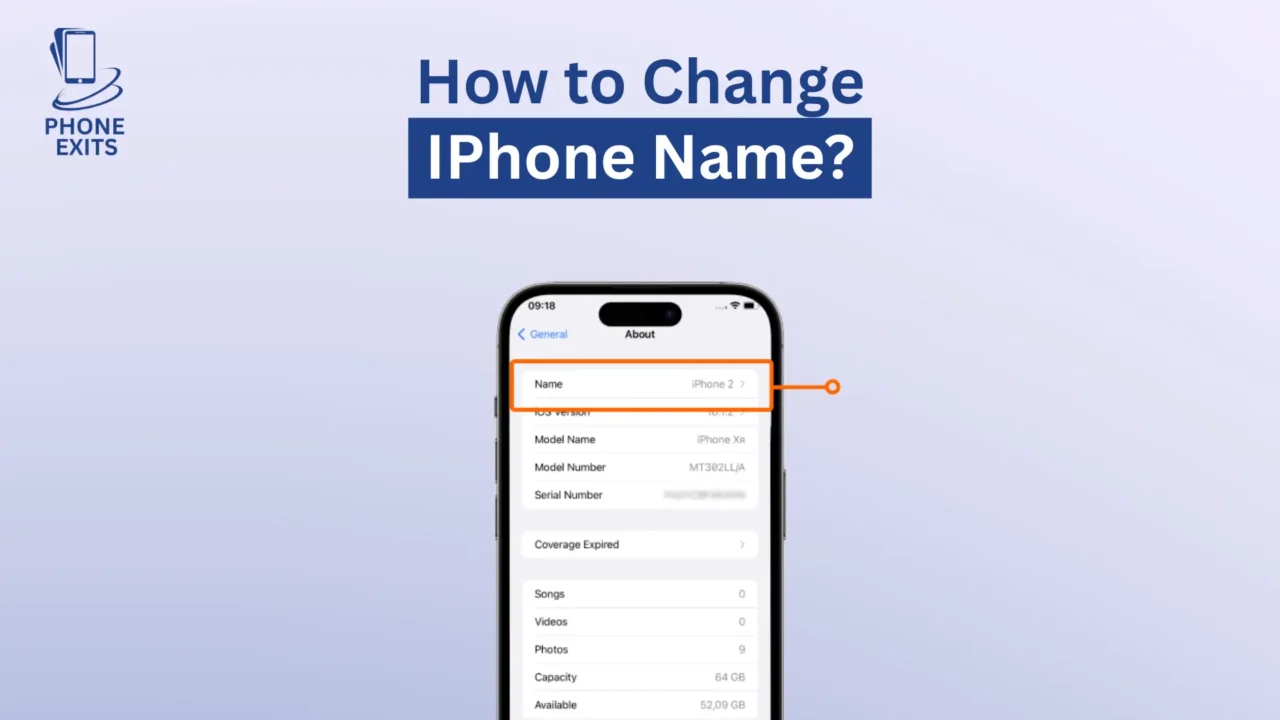
First of all, open the Settings application and scroll until you find the General. When you tap on the general, you see the option about on the top. As you enter the About section, you will notice some information about your device such as the current name that is assigned to your iPhone.
Tap on Name and you will see a text field with the current name highlighted on an iPhone. You can either delete it or just type a new name. After typing a device name of your choice, tap Done using your keyboard.
The new name of your device will be reflected instantly everywhere, including AirDrop, Bluetooth, hotspot, iCloud devices list, and when you connect your iPhone with a Mac or PC. This is similar to when you manage your Apple Watch. If you’re learning how to unpair Apple Watch or how to switch off apple watch, having clearly named devices helps avoid confusion, especially if you have multiple iPhones or smartwatches.
Method 2: Change iPhone Name Using a Mac
You can also rename your iPhone using Finder, should it be connected to a Mac. This is a useful process when your device has already been synched or when you are using your computer to handle more than one Apple device.
Use a Lightning or USB-C cable to connect your iPhone to your Mac. In opening Finder, your iPhone appears on the sidebar in the Locations folder. By clicking on it, one can see details about devices, the possibility to back up data, and so on. The Finder window shows the name of your iPhone on the top of the window.
Any name may be edited by clicking right on it. Enter the name of your new device, and press Return. Finder will automatically refresh the name, and your new device name will be reflected in Apple services. Many smartwatch owners also use a Mac to manage devices. Knowing how to restart Apple Watch or how to turn on Apple Watch is easier when all your devices have distinct names.
Method 3: Change iPhone Name on Windows
iTunes will help Windows users to rename their iPhones, and it continues to manage and synchronize devices on Windows PC.
First of all, you need to connect your Windows computer to your iPhone. Launch iTunes and you will find a device icon at the upper left corner. When you press on this icon, your iTunes device summary page appears. Above the picture of your device, you will find the current name of your iPhone.
On the name, it will be editable by clicking. Enter your new desired name and press Enter on your keyboard and iTunes will save the change and sync the new name automatically.
Where Your iPhone Name Appears and Why It Matters
The name you give your iPhone is not just what you see in Settings. It can be found in various locations over your device and intertwined environments, and this is why a catchy and distinctive name is beneficial.
AirDrop
Your iPhone appears with its device name whenever someone who is close to you wants to send files through AirDrop. A basic and easily identifiable name makes it easier to be found by others.
Bluetooth
Your Bluetooth accessories, car systems, speakers, and other devices show your name as the iPhone. It is much easier to pair and identify once it is renamed.
Personal Hotspot
Your hotspot name mirrors your device name. Changing the iPhone name automatically updates the hotspot, just like when checking smart watches for men or smartwatches for women, which often show up in Bluetooth pairing lists.
iCloud and Find My
Your devices will appear by name in your device list on the inside of your Apple ID and in the Find My app. Renaming makes everything straight, every device is identified.
Connecting to Mac or Windows
Your new name will be displayed whenever you use either Finder or iTunes when connecting the device. This can be of great assistance particularly when you are handling more than one iPhone or iPad.
Best Practices for Choosing an iPhone Name
Although you can name your iPhone anything you want, having a meaningful and well-structured name of the device is more convenient over time. A short distinct name will make your device stand out amongst others, particularly when using a device in a crowded area and you see a bunch of iPhones under AirDrop or Bluetooth.
Do not provide any personal and sensitive information like full names, email addresses, or phone numbers. It is also possible to include the device model in the name, when you have more than one Apple product.
It is also easier to keep the name simple and the same all through your devices and this keeps your privacy intact. The same principle applies to smartwatches: whether it’s a cheap smart watch, waterproof smart watch, or premium model with smartwatch price in UAE, giving it a clear, unique name simplifies syncing and management. Users often ask if smartwatches are safe for your health, so having clearly named devices ensures data is accurately attributed to the correct watch.
Troubleshooting If Your iPhone Name Doesn’t Update
This is because in certain instances your iPhone name may not immediately update across all platforms. This is normally due to software caching, Bluetooth memory, or the delay in syncing. The following are some of the common problems and their solutions.
AirDrop or Bluetooth Still Showing the Old Name
When you use AirDrop or Bluetooth, the name of your iPhone does not appear, even though your device is connected, right away, turn Bluetooth off and on again in the Control Center. You may also reboot your iPhone since most updates done are related to name changes which occur during the rebooting process.
On certain older car systems or Bluetooth speakers, it is possible to delete the paired device and recreate the connection after which the new name can be shown correctly.
iCloud or Apple ID Devices Showing Old Name
iCloud can take a couple of minutes to refresh sometimes. In case the old name still appears, it is possible to restart your device, ensuring that you are signed in to the right Apple ID, or turn Airplane Mode on and off. Logging out and logging in to iCloud also forces a refresh, but only do so if you need to.
Finder or iTunes Not Updating the Device Name
In case your Mac or Windows computer still displays the former name, unplug and re-plug your iPhone. Close Quit Finder or iTunes completely and open it again so as to reload new data. In extraordinary circumstances, a forceful restart of your computer will be necessary to trigger the update.
Can’t Edit the Name Field
In case you cannot tap the Name field in Settings or edit using Finder or iTunes, it can be a device management profile installed by work or school and the problem is related to restrictions. Ensure that your iPhone is unlocked and that it is under the current iOS version. It can also be necessary to remove or modify the management profile.
Conclusion
Renaming your iPhone is a minor modification that can result in significant changes in your organization and naming of Apple products. You can work with Settings, a Mac, or a Windows PC; it does not take much time, just a few seconds. Now, with this complete guide, you possess all the techniques.
FAQs About How To Change Iphone Name?
Does changing my iPhone name affect my Apple ID?
Renaming the device only changes the appearance of your iPhone in the services you are connected to. It does not have any impact on your Apple ID, iCloud data, or synced content.
Will renaming my iPhone affect backups?
No. Your backups will proceed as normal. The new name will only be listed in the list of available device backups in Finder or iTunes.
How do I change my iPhone hotspot name?
The name of your hotspot is attached to the name of your iPhone. The name of the hotspot is automatically changed, once you have renamed your device with the above steps.
Can someone remotely change my iPhone name?
Nobody can change the name of your iPhone remotely unless they are physically nearby and can unlock your phone or have your complete Apple ID.