
Call forwarding is also known as call divert and it is a feature which enables you to divert an incoming call to another number without missing essential conversation. You are changing devices, you are not being interrupted, you are handling work calls and manage them separately, knowing how to divert calls on iphone allows you to have full control of your communication.
This guide discusses every possible option, such as iPhone settings, dial codes on the carrier, voicemail forwarding, Duo SIM, and troubleshooting more in detail when forwarding is not operating as expected.
Table of Contents
Understanding How Call Forwarding Works on iPhone
Call forwarding forwarding forwards incoming calls to a different phone number automatically, both on the default settings menu on the iPhones and also on universal carrier codes of GSM.
Unconditional Call Forwarding
Unconditional forwarding implies that all calls are automatically forwarded to a different number. Your iPhone will not ring at all. You usually call upon this when you wish all calls to be directed to a business line, a second phone, or a voicemail number.
Conditional Call Forwarding
Conditional forwarding only happens when some situations arise. They are the times you turn the phone off when receiving a call, when the phone line is occupied, and when the phone cannot connect or when the phone is switched off. This technique is best when you wish your iPhone to ring first and then the call is redirected. This option is perfect for users who want calls to ring first on devices like smartwatches for men or smartwatches for women, before diverting them elsewhere.
How to Divert All Calls on iPhone Through Settings
The easiest way to redirect calls is via the Call Forwarding feature in your iPhone settings.
Opening the Call Forwarding Menu
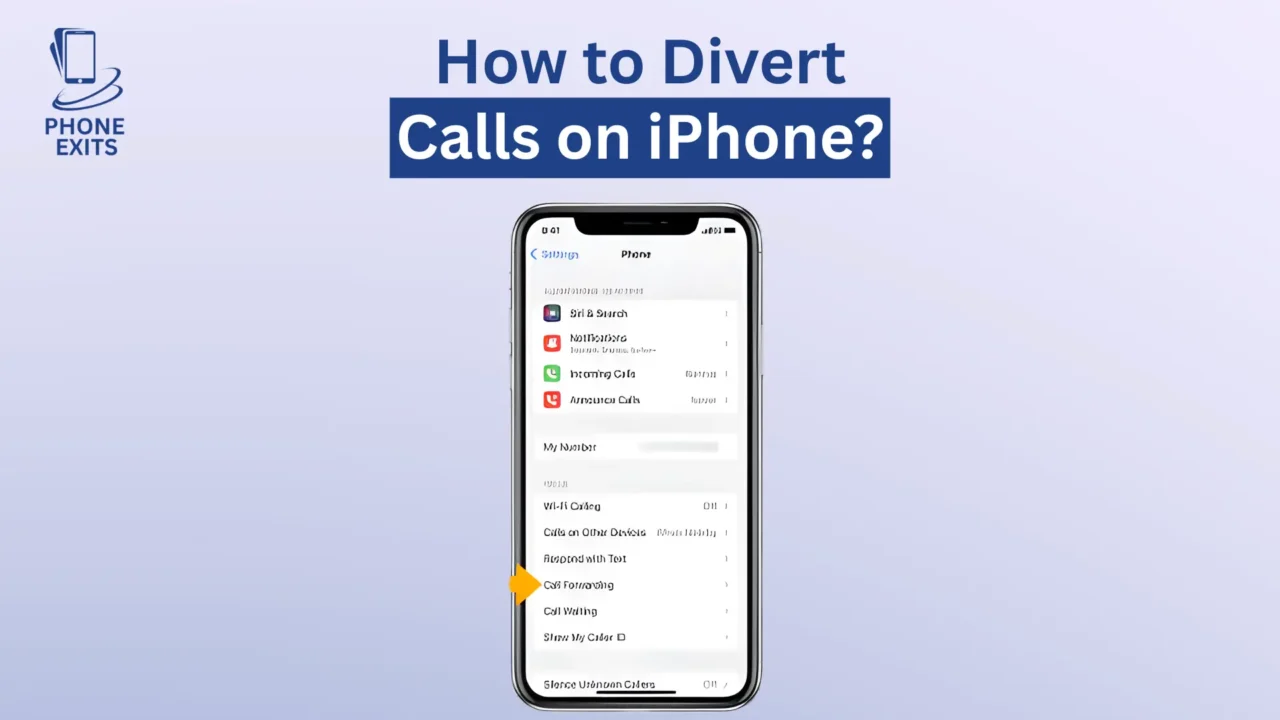
To begin with, open the Settings application and unlock your device, scrolling to find the section that is called Phone and tap it. Within the Phone options, you will find an entry called Call Forwarding.
Activating Call Forwarding
Once in the Call Forwarding menu, switch on the toggle. When the feature is activated, a new option is displayed called Forward To. This is where you enter the number where your calls are to be diverted.
Setting the Destination Number
Tap on Forward To and type in the entire phone number to which you need all calls forwarded. Depending on your region or destination number, you may be required to add country codes. Go back to the preceding screen and verify and save settings. When it is active, you can see a small arrow telling you that call forwarding is switched on in your iPhone status bar.
How to Divert Calls on iPhone with Carrier Dial Codes
Call forwarding is enabled on many carriers with dial codes. These codes allow you to have more control and forward under certain circumstances why in case of being busy or unreachable. Making the phone app call by dialing such codes implements the forwarding rules directly over the carrier network.
Diverting All Calls
You will need to dial the following code to forward all calls:
*21*DestinationNumber#
Tap the call button and await the confirmation of your carrier network.
Diverting Calls When Line Is Busy
When you only wish calls to be diverted when you are on another call, dial:
*67*DestinationNumber#
This comes in handy when you get too many overlapping calls.
Diverting Calls When You Do Not Answer
In case you want your iPhone to ring first and automatically redirect the call, then you can switch this option by dialing:
*61*DestinationNumber#
This sets forwarding once the phone has rung a few times.
Diverting Calls When Phone Is Unreachable
When you are out of coverage, or in a no signal area or have your iPhone turned off, you can still place a call somewhere dialing:
*62*DestinationNumber#
This state does not allow calls to go through with an unreachable tone.
Deactivating All Forwarding Conditions
Dial to clear all the activations:
##002#
This restores any forwarding rules to the default state.
Forwarding Calls to Voicemail
In case you only want people to call your voicemail other than a different phone, forwarding can be activated to forward calls to your voicemail number. Pairing an Apple Watch with your iPhone allows you to answer or reject calls directly from your wrist, making call management seamless.
You can also check how to find my iPhone or how can I find a lost phone if your device is misplaced, ensuring you don’t miss forwarded calls.
Managing Your Watch
Learn how to reset Apple Watch, how to unpair Apple Watch, how to turn on Apple Watch, how to switch off Apple Watch, or how to restart Apple Watch to ensure it works correctly with call forwarding.
Diverting Calls Between iPhone, Android, and Landlines
Call forwarding is no longer restricted to calling iPhones alone. You are capable of diverting to Android devices, legacy landlines, work, international, and VoIP services. As long as the number is active and valid forwarding should work normally.
In the event that you alternate between two personal devices, forwarding can facilitate smooth flow of communication rather than changing the SIMs all the time.
Call Forwarding for Dual SIM and eSIM iPhones
Dual SIM and eSIM models have forwarding options per line. iPhones do not have a standard forwarding option that involves one line.
Selecting the Correct SIM Line
Go to Settings→ Cellular, select your desired SIM or eSIM line, and find the Call Forwarding option. Other carriers permit the forwarding on both lines, and some might only permit the feature on one side at a time.
Understanding Carrier Limitations
In the event that Call Forwarding is not available on one of your lines, the carrier might fail to provide native forwarding. Dial codes will be all you have in these cases.
How to Turn Off Call Forwarding on iPhone
There are 2 ways in which call forwarding can be disabled based on how it was enabled.
Turning Off Forwarding Through Settings
Go back to Settings/Phone/Call Forwarding and turn the switch off. This blocks any forwarding that is set up using the iPhone interface.
Turning Off Forwarding Through Carrier Codes
You have to turn off dial codes the same way you turned it on. Enter the correct cancellation code to the forwarding condition, e.g.:
- unconditional forwarding with #21?
- #61#, #67#, or #62# for conditional types
- ##002# to disable everything
Removal of forwarding will be confirmed by your network.
Troubleshooting Call Forwarding Issues
Sometimes call forwarding will not activate or work properly. Knowing the cause of the problem enables you to solve the problem quicker, and verify that devices like your Apple Watch or other smartwatches for men and smartwatches for women are correctly paired.
Missing Call Forwarding Menu
Unless you find the Call Forwarding option within the Phone settings, then your carrier might not be compatible with native iPhone forwarding. The alternative solution is to use dial codes.
Forwarding Does Not Trigger
This problem arises frequently when the destination number is typed in wrongly. Attempt to entry country code and number. And in case of additional forwarding failure, carrier activation might be needed by your provider.
Calls Still Ring on Other Apple Devices
Provided you have several different gadgets linked by Continuity, you might see the calls on your Mac/iPad despite forwarding being enabled. To turn this off, use Settings FaceTime iPhone Cellular Calls and switch it off.
Carrier Restrictions
Conditional forwarding can be restricted by some prepaid plans, VoIP SIMs, or regional networks. Your carrier may require a manual activation.
Smartwatch and iPhone Tips
Forwarding calls isn’t the only way to stay connected. Smartwatches provide additional convenience. Consider these points:
- Are smart watches safe for your health? Yes, but use them responsibly and avoid excessive exposure.
- Smartwatch options: Look for cheap smart watch, waterproof smart watch, and check smart watch price in UAE before buying.
- Apple Watch tips: You can control iPhone notifications, track calls, and manage messages. Learn how to change iPhone name to easily identify your device with your watch.
Summary
Knowing how to divert calls on iPhone will provide you with a great power in terms of how and when you receive calls. You are able to make calls forward, dialing code via carrier, direct calling to voicemail and handling multiple SIM lines easily through settings. Call forwarding is available whether you are making or receiving work calls when traveling or just changing devices, you can be assured that there will be no communication.
FAQs About How To Divert Calls On Iphone
How do I divert all calls on my iPhone?
Go to Open Settings, proceed to the phone option, select the call forwarding, and turn it on and then input the number into which you want your calls to be forwarded.
Why is the Call Forwarding option missing?
Your carrier might not forward iOS. The most appropriate alternative is using dial codes such as 21number#.
Can I make my phone ring first before forwarding?
Yes. Apply conditional call forwarding codes like 61number# to only divert unanswered calls.
Does call forwarding cost extra?
Other carriers charge forwarded minutes since they are treated as outgoing calls. Check with your provider.
Can I divert calls to voicemail?
Yes. It allows you to call forward to your voicemail number either via the Settings menu or the forwarding codes.