
Photo collages are now one of the most trending methods to share memories, visual stories and engage social media platforms. It can be a birthday recap or traveling memory, the before-after pictures or Instagram posts, with collages, you can join several pictures in one, purposeful frame.
You are not alone when searching how to make a collage on iPhone. The question that arises among Apple users is whether iPhones possess their own collage maker or they need extra apps. The best is that you can make a photo collage on iPhone in a couple of simple ways some of them without even having a single application on your device, some of them with the help of very strong free software.
This step-by-step tutorial will teach you all the sure steps to make spectacular collages on iPhone, the best apps to use and some useful tips on how to make your collages look professional. Along the way, we’ll also cover other useful iPhone tips like how to connect Apple Watch to iPhone, how to find my iPhone, and more.
Table of Contents
Does iPhone Have a Built-In Collage Feature?
The issue of whether the Photos application on the iPhone has a collage maker is one of the most frequently posed questions among the users of the iPhone. Although the Photos app is a great app to edit, crop, filter, and organize images, it lacks a collage feature.
Nevertheless, this does not imply that you cannot make a collage without downloading an app. Apple has an alternative in the form of the Shortcuts app, which enables one to automate tasks, such as creating a simple grid of photos.
Third-party collage maker apps are more preferable to those who want more design control, templates, and creative freedom.
How to Make a Collage on iPhone Without an App
You do not need to install any extra apps, as you can create a collage through short cuts in the Apple app. This approach works best on simple layouts and fast output.
Using the Shortcuts App to Create a Photo Grid
Most iPhones have the Shortcuts app installed. The first step to follow is to open the app and press on the Gallery area. Find a shortcut called Photo Grid or other collage-related shortcuts.
After adding it, open the shortcut and choose the photos you wish to add to your collage. The shortcut will automatically format the images in a grid format and save final image to the Photos application.
This method is most effective when you are aiming at simplicity. Although it does not offer customization features such as borders, text, or filters, it is a trusted method of create a collage on iPhone without an app.
How to Make a Collage on iPhone Using Google Photos
One of the most convenient and commonly used tools to create a photo collage on an iPhone is Google Photos. It is open-source, user-friendly, and compatible with iOS.
Creating a Collage with Google Photos
Once you have installed Google Photos in the App Store, open the app and tap the Create option. Select Collage, and then select two to six photos. Google Photos will automatically create a collage layout, you can preview prior to saving.
Despite their lack of customization possibilities, Google Photos is fast and easy. It is an excellent free collage maker for iPhone when you need something quick and without much fuss.
Best Apps to Make a Collage on iPhone
Users with a creative desire, need in design, and want higher-quality editing options should use third-party collage apps. Some of the best and most popular collage applications on iPhone are listed below.
Canva: Best iPhone Collage Maker for Templates
Canva is among the strongest design applications on iPhone. It is particularly common among social media creators, bloggers, and small businesses.
Why Canva Works So Well for Collages
Canva provides thousands of preset photo collage templates that are optimized to be used on Instagram, Facebook, Pinterest, etc. Users are able to post images easily, to manipulate space, add text, icons, backgrounds, and to export high-quality designs.
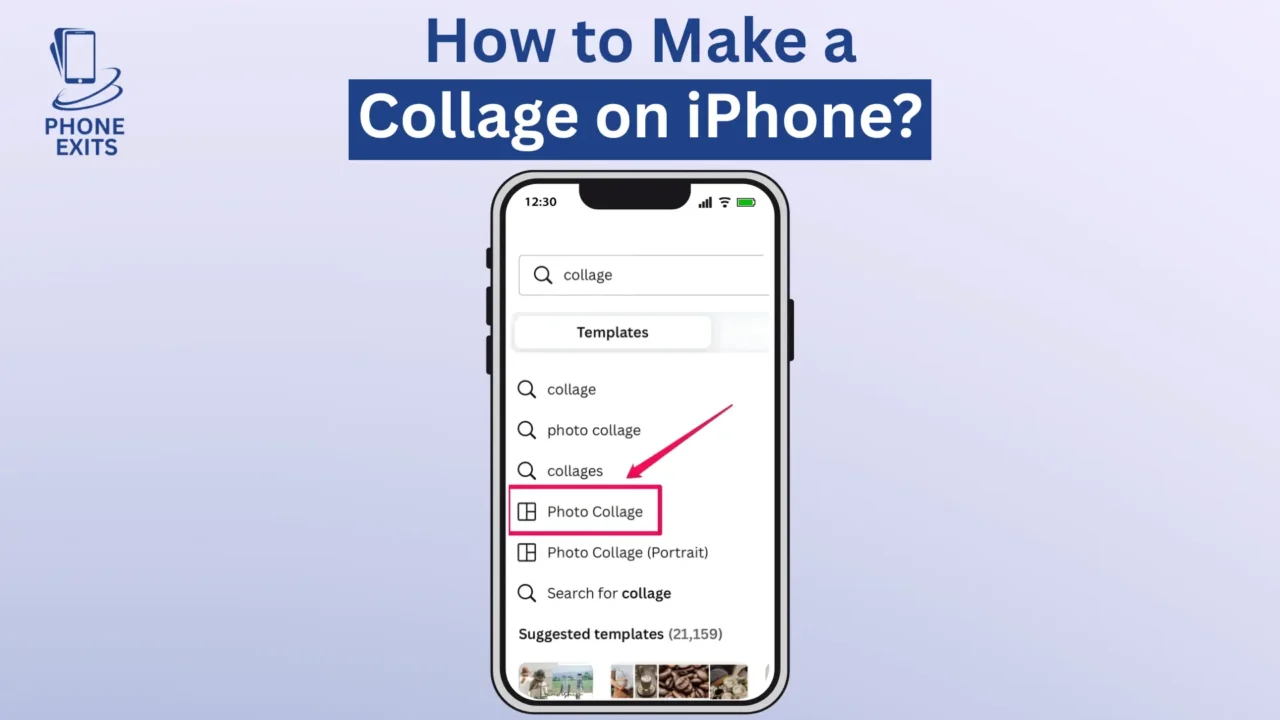
Making a collage on Canva is easy. Open the application, enter Photo Collage, select a template, insert your photos, and design the collage. Canva is perfect when you need to have finished, professional-looking collages and do not have to have any advanced design knowledge.
Photoroom: AI-Powered Collage Creation on iPhone
Another brilliant application is Photoroom, particularly among creators and businesses. It is unique due to its AI capabilities, such as background removal and smart objects placement.
How Photoroom Enhances Collage Design
Photoroom enables users to merge several photos and automatically remove backgrounds and improve the image balance. This is ideal in product photos, advertisements and imaginative stories.
Photoroom is a promising option in case you wish your iPhone photo collage to look contemporary and visually compelling.
Picsart, PicCollage, and Layout by Instagram
Picsart has a wide range of creative features like stickers, overlays, effects, and collage layouts that are flexible. It is appropriate when users like artistic designs and personalization.
PicCollage is a product oriented towards simplicity and speed, having simple drag-and-drop layouts and a small learning curve. Instagram has a layout that suits people who prefer square collages that are clean and optimally worked out to be used in Instagram posts.
All these apps serve a unique kind of user although they are all trustworthy photo collage iPhone apps.
Other Free Collage Maker Apps for iPhone
Besides the above major apps, there are a number of other tools that should be explored. Applications such as YouCam Perfect, PhotoDirector, InShot, Fotor and Pic Stitch provide a combination of templates, editing features and export opportunities.
A majority of these applications offer free versions with an optional premium upgrades that can be used by both amateurs and professionals.
Tips to Create Stunning Collages on iPhone
A collage is not the simple act of gluing pictures, it is about balance and narrative. Select pictures that have a common theme, color tone or mood. The collage may appear messy as a result of including excessive irrelevant images. Interspersing is also necessary.
Do not overcrowd the layout and leave each image ample space to shine through. When you are putting text there, make it as simple as possible and easy to read. In the case of social media, such as Instagram, square or vertical collages are more effective. In blog posts or presentations, landscape collages tend to be more natural.
Best Aspect Ratios for iPhone Collages
Selecting appropriate size can go a long way in enhancing the appearance of your collage on various platforms. Instagram feeds suit square collages, whereas vertical layouts are better on Stories and Pinterest. Websites, YouTube thumbnails, and presentations are more appropriate to landscape collages.
The majority of iPhone collage maker applications will give you a choice in the aspect ratio you would like to use before exporting your design, so your collage fits perfectly.
How to Save and Share Your Collage on iPhone
After you have finished your collage, save it in your Photos application in the best resolution possible. The majority of apps offer export options, which allow picking quality and format.
Sharing is just as easy. It allows posting your collage straight to Instagram, WhatsApp, Facebook, Tik Tok, Pinterest, or email at the touch of a button. In the case of social media, one should always export at the highest possible resolution to prevent compression problems.
Final Thoughts
The knowledge of how to make a collage on iPhone opens unlimited creative prospects. You can use the inbuilt Shortcuts, Google Photos, or more serious apps such as Canva and Photoroom, among others, that can solve every skill and need.
Simple tools will be great when you want to get quick results. Assuming that creativity and customization are important, third-party collage applications are worth considering. Regardless of the approach you take, making a photo collage in iPhone is easy, entertaining, and very rewarding.
By combining these techniques with other iPhone features—such as how to activate roaming in iPhone, how to see Deleted messages on iPhone, and how to change iPhone name, how to divert call in your iphone you can manage your devices and photos efficiently while keeping your memories safe.
FAQs About How to Make a Collage on iPhone?
Can I make a collage on iPhone without downloading any app?
Yes, you may make a basic photo grid using the Shortcuts app without having to install third-party applications.
What is the best free collage maker for iPhone?
The best free collage maker apps are Google Photos, Canva, and PicCollage (iPhones).
How many photos can I add to a collage?
The majority of collage applications support four to nine photos, and Google Photos can help with six pictures in one collage.
Can I edit photos inside collage apps?
Yes, Apple has the majority of iPhone collage apps which have the editing option of filters, brightness, text, stickers and border.