
It might be useful to know how to turn off your Apple Watch more than you would assume. You might need to save battery or correct a minor software malfunction or just need to take a quick break, knowing the correct manner of turning off your device will help keep your Apple Watch healthy and active. Although most users keep their Apple Watch on all the time, sometimes it is beneficial to turn the watch off to rejuvenate the system and make it last longer.
This guide will take you through all the steps, including how to use buttons to change settings, and how to troubleshoot when the Apple Watch is unresponsive. You will also know how to force restart your watch, how the models are different, and when to use the other modes rather than turn off the watch altogether.
Table of Contents
Why You Might Need to Turn Off Your Apple Watch
Although your Apple Watch is designed to be used at all times, it is sometimes best to power it off. You may have to switch it off when flying, or when the device is not in constant use or during troubleshooting performance problems.
A temporary shutdown is also useful in cleaning up a background process that causes performance to slow down. Sometimes, users turn off their Apple Watch to reset Bluetooth connections or conserve battery on a hectic day or avoid unnecessary notifications when they are at work or sleeping.
No matter the reason, it only takes seconds to shut down your watch, and it is perfectly safe to do so, without any loss of your data or connection to your paired iPhone.
How to Switch Off Apple Watch Using the Side Button
The simplest and most usual way of turning off your Apple Watch is through the side button. This button is just under the Digital Crown on the right side of your device.
Step-by-Step Process
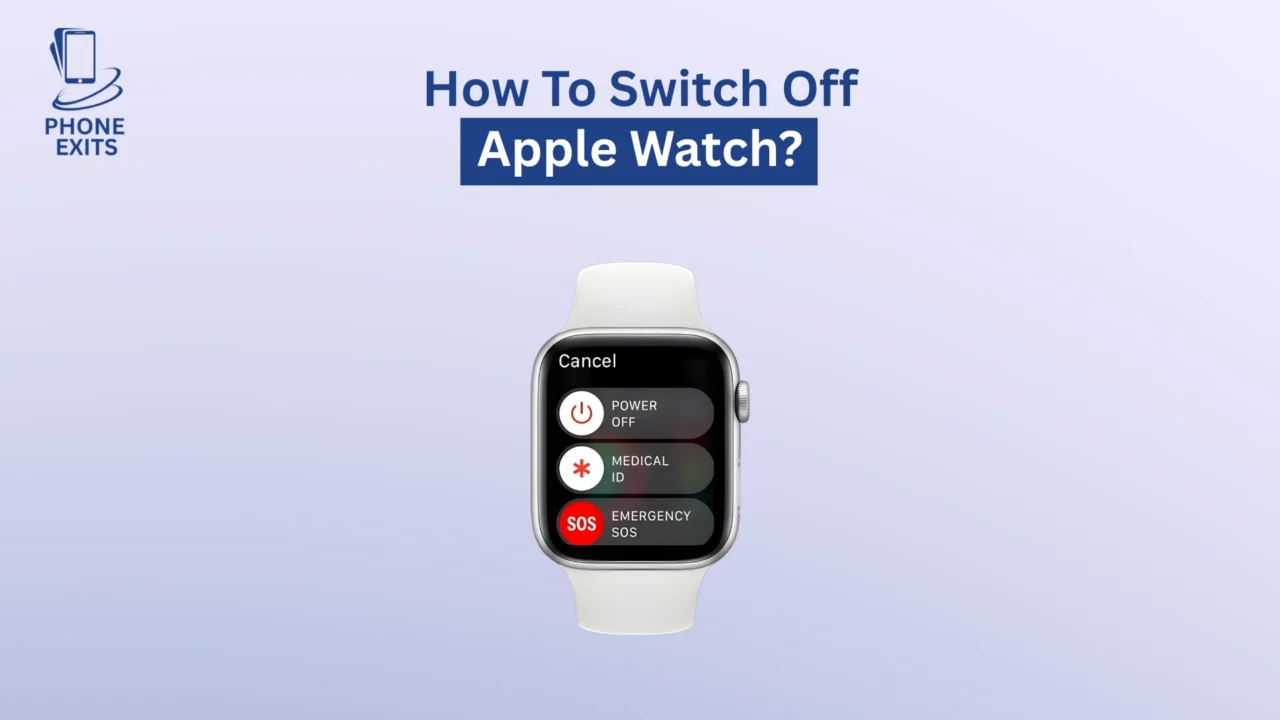
First, press and hold the side button until you can see three sliders on your screen, Power Off, Medical ID, and Emergency SOS. When you’ve seen the Power Off option, tap the little power icon when asked, then tap a slider of the left to the right. After a few seconds, the screen will turn off, and you will know that you have successfully switched the Apple Watch off.
Important Tip
Your Apple Watch cannot be turned off when charging. When it is attached to the magnetic charger, take it off first and then proceed with the aforementioned steps. To make the shutdown process effective, the watch needs to be disconnected.
How to Turn Off Apple Watch from the Settings App
You can also turn off your Apple Watch in the Settings app provided that your screen is responsive and you are more inclined to navigate via menus.
Step-by-Step Process
To start with, press the Digital Crown to access your apps and tap on Settings. In that, scroll down and tap General, and scroll down the entire list to the last to get the Shut Down option. Tapping it results in the usual Power Off slide on the screen. Just scroll over to the right and switch off your Apple Watch altogether.
This is especially useful when your side button is not responding or you wish to turn off your watch with your touchscreen and not the physical buttons.
How to Force Restart an Unresponsive Apple Watch
In some instances, your Apple Watch can freeze or become utterly unresponsive and is unable to be shut down by usual means. Then a force restart might be used to revive it.
When to Use a Force Restart
When your watch is completely frozen or stagnant, then you should force restart it. Do not apply this technique in a software update because stopping an update may lead to additional complications.
Step-by-Step Process
To reboot, press both the side button and the Digital Crown simultaneously. Continue to hold them roughly ten seconds before you notice the appearance of the Apple logo on the screen. When it appears release both buttons and then wait a few more moments before your watch restarts.
It does not erase any information, it just makes your device restart once the touchscreen or power control buttons are not working.
Turning Off Apple Watch Models: Series 9, SE, and Ultra
The process of switching off does not differ among the models of the Apple Watch, but there are slight design differences worth mentioning.
Series 9, 8, and SE Models
In such models, both the Digital Crown and a side button are positioned on the right side of the watch. The process to shut down is also the same; first, press and hold the side button until the sliders come into view and then drag the Power Off slider to the right.
Apple Watch Ultra
Apple Watch Ultra is a little larger in design and has an extra Action button on the left side. But you still have to use the same right side button to switch it off or reboot it. The shutdown process remains the same in all models despite the additional features.
What to Do If Your Apple Watch Won’t Turn Off
You could have the problem of your Apple Watch not responding to the typical power-off commands. In the event that it occurs there are some reasons and fixes to take into account.
When It’s Charging
When charging your Apple Watch, it cannot be switched off. When attempting to turn it off, whilst still connected to the charger, take it out and redo.
When the Screen Freezes
When a system is frozen or lagging, it is a stuck system. Here, a force restart is performed by pressing the Digital Crown and side button together until the Apple logo appears.
When It Keeps Restarting Automatically
In case the watch continues to restart itself or get stuck in the restart loop, update the software on your iPhone in the Watch app, which may resolve the problem. In case the problem persists, unpair your watch and pair it again with your iPhone to re-establish all connections.
When the Battery Is Fully Drained
Your watch can seem to be unresponsive when a battery is completely drained. Charge it at least 30 minutes and then attempt to either turn it on or turn it off. It only takes time, sometimes, to get sufficient power to react.
Alternatives to Powering Off Your Apple Watch
You do not necessarily need to take off the Apple Watch fully. Depending on your requirements, a number of built-in modes are available to assist you in saving battery and minimizing interruption without necessarily switching off the device.
Low Power Mode
Low Power Mode saves power by reducing background processes and turning off certain sensors. It fits well on long journeys or days when you will not have a charger.
Theatre Mode
This mode will maintain the display low until you touch it and then it will light up, avoiding the unintentional light on at a meeting, movie or when asleep.
Airplane Mode
The Airplane Mode turns off Bluetooth, Wi-Fi, and cellular connections when you still have your watch. It comes in handy during flights or when on the rush to conserve battery.
Do Not Disturb Mode
Do Not Disturb blocks incoming calls and messages and yet monitors your health information in the background. It is perfect when you have to work or sleep.
Things to Remember Before Switching Off
Unless you are certain that you are completely detached off the charger and that all updates have been made, always ensure you switch off your Apple Watch before going to sleep. In case you are working out or have applications that monitor real-time information, first cancel such sessions before you save the information. Powering off your watch will never delete anything – all the information is safely stored on the gadget and in your iCloud account.
Final Thoughts
Knowing how to turn your Apple Watch off in the right way is among those basic yet crucial things that simplify the process of caring about your device. It can be when you want to troubleshoot, to save battery or even to simply reset your system so that your watch remains responsive and performs to its best, proper powering down will make sure that your watch is always responsive.
In case your Apple Watch still remains unresponsive after restarting or will not even switch off, you may refer to the Apple Support site or call AppleCare so that they can identify more in-depth hardware or software troubles. Your Apple Watch will continue to operate with ease with a bit of care, time to trace all the steps, heartbeats, and occasions of your day.
FAQs About How To Switch Off Apple Watch
Can I turn off my Apple Watch while it’s charging?
No, you can’t. To switch off, the watch must be unplugged out of the charger.
How do I turn off an unresponsive Apple Watch?
Tap and hold the Digital Crown and side button about ten seconds until the Apple logo appears. It is referred to as a force restart.
Will switching off my Apple Watch delete my data?
No, turning off does not delete any information. Your applications, preferences, and health information are protected.
How do I turn my Apple Watch back on?
You only need to press and hold the side button until you see the Apple logo on the screen. Turn it off and your watch will boot up again.