
The first time you set up your Apple Watch is always exciting, and, when it fails to boot up, it might be confusing. Regardless of whether you have just opened a brand new model or you are attempting to turn on the one you already have, it is necessary to know how to turn on Apple Watch. It is easy but with a couple of details to remember- particularly when your watch is not responding or when the battery is completely emptied.
This guide will help you know how to properly start it, what to do in case it does not start and some useful tips to keep it running well.
Table of Contents
How to Turn On Apple Watch
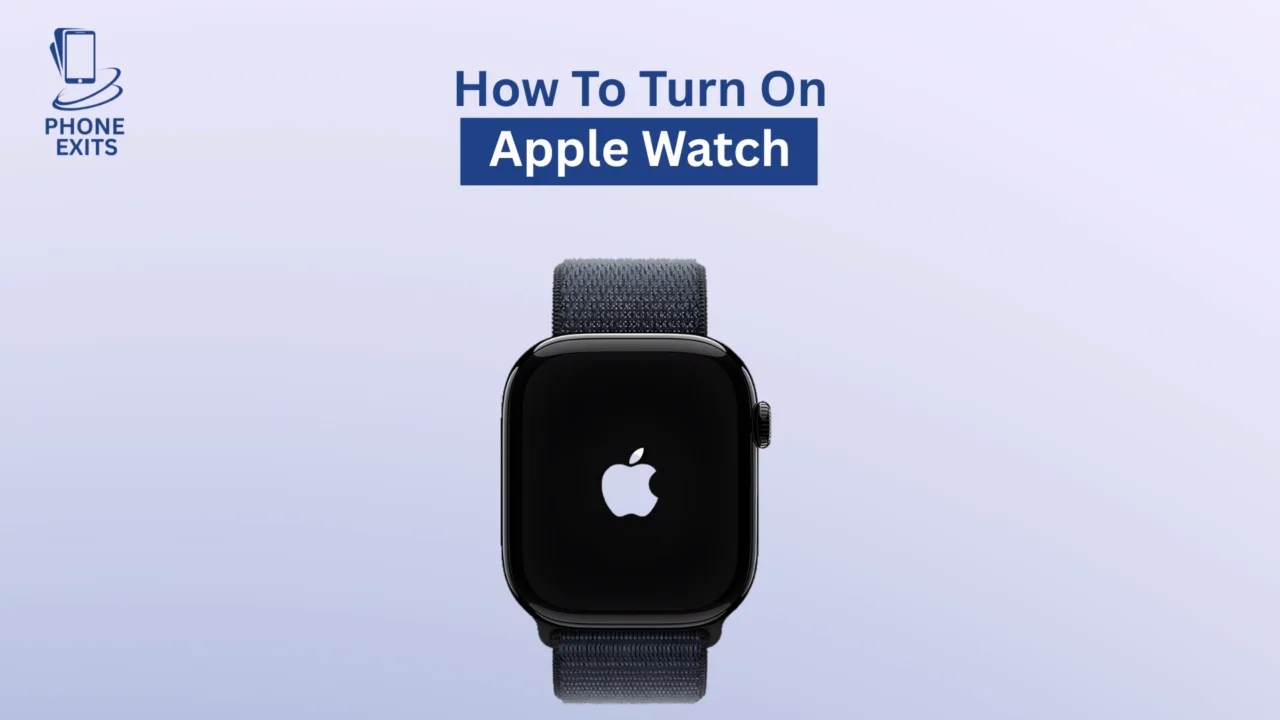
To turn on your Apple Watch, press and hold the Side button until you see the Apple logo appear on the screen. The watch will automatically start up. This easy procedure is applicable to all Apple Watch Series, SE, and Ultra.
When there is no Apple logo, or your watch is still black, it probably requires a charge to boot up. We will step through the steps of each model in detail and correct the most common problems. Instructions on how to turn on any Apple Watch.
How to Turn On an Apple Watch for Any Model
Turning On Apple Watch Series and SE
Find the Side button, located right beneath the Digital Crown on the right side of your watch. Hold this button down a few seconds until an Apple logo appears. With the logo appearing, press the button again and wait a few seconds till your watch loads the home screen or pairing setup screen.
When nothing occurs within a few seconds, put the watch on its magnetic charger briefly, and then attempt to turn it on once again. The battery is sometimes too low to boot up.
Turning On Apple Watch Ultra
The Apple Watch Ultra works in the same way, although due to its rugged design and a bigger battery, it can take a little longer to boot up. Press and hold an Apple logo appears by pressing the Side button on the right side of the case. By the time the device is booted, you would be on the main watch face or set up screen.
When your Apple Watch Ultra has not been used long, then charge it using its magnetic charger, which will take 10-15 minutes and only then should you attempt to turn it on.
What to Do If Your Apple Watch Won’t Turn On
You do not have to panic when your Apple Watch does not respond after pressing the Side button. This may be caused by a number of factors including a low battery, a broken charger, or even a temporary software freeze. Use these steps and resuscitate it again.
Check the Battery and Charger
The most widespread cause of not being able to turn on your Apple Watch is a fully exhausted battery. Connect it to the official Apple magnetic charger with the charging surface and the back of the watch being clean and in the proper position. Wait for at least 10 to 30 minutes.
At this point, a green lightning bolt or a red lightning bolt icon might appear on the screen, meaning that the watch is being charged.
Wait at least 30 minutes before trying another power outlet, adapter, or charging cable in case you do not observe any icons. Sometimes all that is required is charging and the device has not been used in many days.
Force Restart the Watch
In case your Apple Watch is stuck and has a blank screen or seems to be entirely frozen, force restart may help resolve the problem. To do that, press the Side button and the Digital Crown simultaneously. Hold them approximately ten seconds until the Apple logo shows.
Restarting does not delete the information- it just re-boots the system. Nevertheless, this method should not be used when updating software because it might disrupt the installation process. If you continue facing repeated freezes or startup errors, it may help to reset Apple Watch to factory settings after backing up your data.
Inspect the Charger and Cable
The problem is sometimes not the watch, it is the accessories. Examine your charger as an indicator of damage or wear. Attempt to plug it into a different power source, or borrow a charger of a friend. Wipe the back of your watch and the magnetic face of the charger with a cloth to wipe off dust or dirt which may not allow correct contact.
Seek Apple Support
In case your Apple Watch continues to fail to respond after charging and rebranding, it might be a mechanical issue. Diagnostic testing is available at the Apple Support online or local Apple Store. They are able to identify the problem as a battery problem or a more serious internal cause.
How to Turn Off Apple Watch
It is also important to know how to switch off your Apple Watch. In order to achieve this, one has to press and hold the Side button until the Power Off slider appears on the screen. Move the slider to the right and your watch will completely turn off.
In case you wish to activate it once more, just press and hold the Side button once more until you see the Apple logo. Remember to do not select the Power off option when your Apple Watch is currently charging.
If you’re planning to sell or give away your device, make sure to unpair Apple Watch from your iPhone before doing so. This removes your personal data and disables Activation Lock, ensuring a smooth setup for the next user.
Essential Tips for Smooth Apple Watch Performance
Keep Software Updated
Always update the watchOS with the most recent versions because they usually have performance improvements and bugs fixes that can eliminate the start-up problems. You are able to update via the Watch application on your iPhones or through the watch itself in the Settings section.
Use Low Power Mode When Needed
When the battery of your watch is depleted, turn on Low Power Mode to achieve more battery life before you can recharge. This mode does not permanently shut down some background features but only disabled some of them temporarily keeping some of the basic functions operating.
Maintain Charging Hygiene
Wipe down the back of your Apple Watch and the magnetic charger with a soft cloth regularly. This assists to keep contact with the charge efficient and avoid connection problems.
Avoid Extreme Temperatures
Apple Watches perform optimally at room temperature. Long-term exposure to either extreme temperatures (hot or cold) may influence the health of the battery and lead to the device shutting down without reason.
Final Thoughts
It is not that difficult to know how to turn on Apple Watch when you are aware of the procedure. Regardless of your Series, SE, or Ultra, you only need to press the Side button long to power the device. Unless it fires right away, see the above tips on troubleshooting, and most of the problems can be resolved at home. With some special attention, your Apple Watch will keep you in touch, updated and on time on a daily basis.
Conclusion
To power up your Apple Watch, it is easy enough, just press and hold the Side button until you see the Apple logo. When your watch does not start, make sure it is charged, force restart or check the charger. Within minutes, these steps eliminate a majority of problems. In the case of intractable issues, your best bet is to turn to Apple Support to restore your device back online.
Frequently Asked Questions About How to Turn On Apple Watch
How do I turn on my Apple Watch?
Keep pressing the Side button until you arrive at the Apple logo on the screen. Click the button and wait till the watch boots up.
Why won’t my Apple Watch turn on?
This can be caused by a depleted battery, a malfunctioning charger, or even by a frozen screen. At least charge your watch a minimum of 30 minutes, and attempt a force restart in case it is unresponsive.
How can I force restart my Apple Watch?
Press the Side button and Digital Crown approximately 10 seconds until the Apple logo is displayed. This will restart your watch without data loss.
How long should I charge a dead Apple Watch?
When the battery is fully discharged, it is recommended to wait at least 1030 minutes before attempting to restart it again.
Can I turn on my Apple Watch without charging?
No, in case the battery is drained, it needs to be charged to switch on. Taping the Side button will not activate it unless it has battery power left.